Download and Install
Download Docker Desktop from the official Docker website for your operating system. On Windows, make sure WSL 2 is enabled (Docker Desktop will prompt you during installation if it is not). On macOS, the installer handles everything automatically.
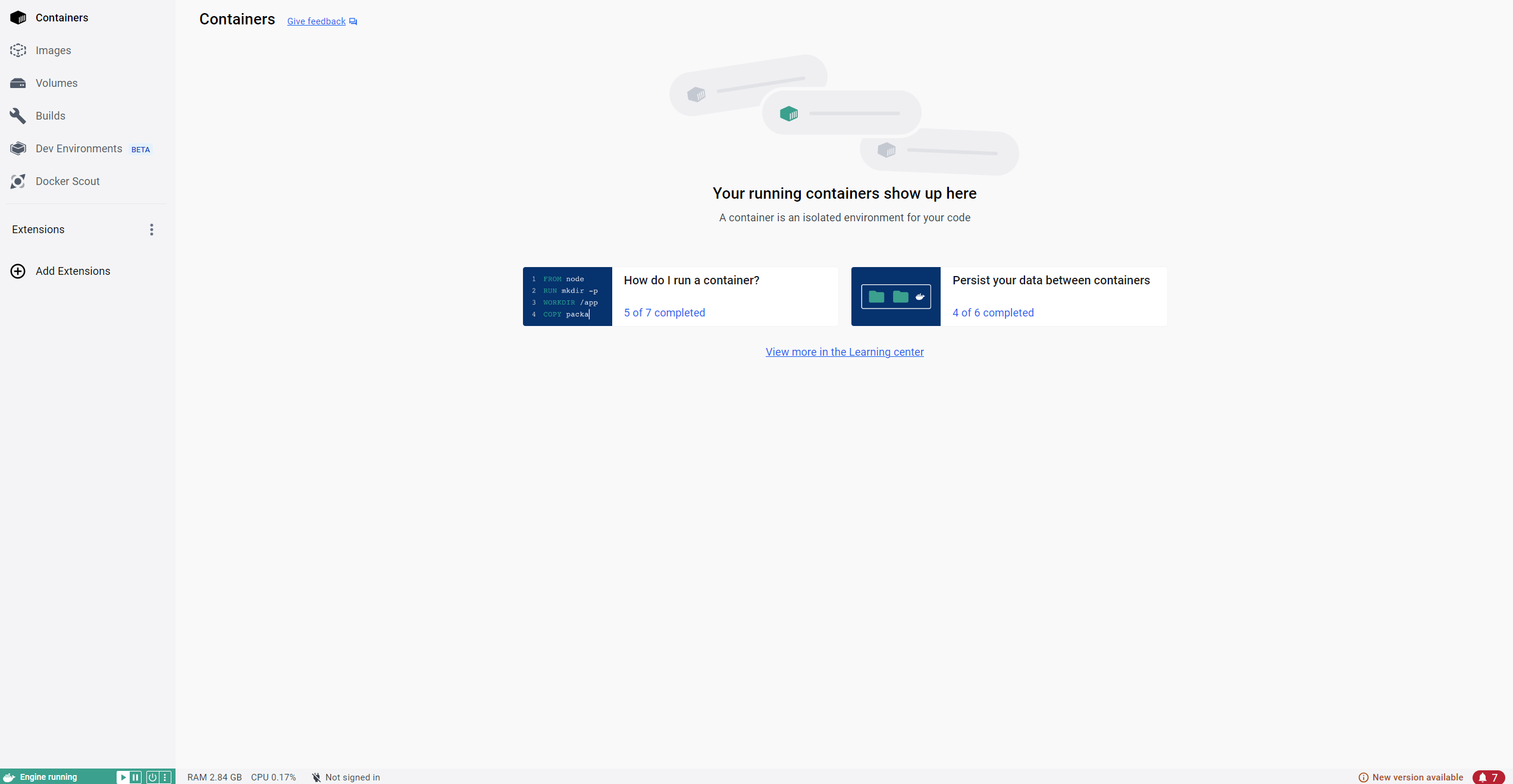
After installation, verify that Docker is running:
bash
docker --version
You should see something like:
Docker version 27.x.x, build xxxxxxx
Also verify Docker Compose:
bash
docker compose version
Docker Compose version v2.x.x
Running Your First Container
Let us make sure everything works with a quick test:
bash
docker run --rm -it mcr.microsoft.com/dotnet/sdk:10.0 dotnet --info
This pulls the official .NET 10 SDK image and prints the runtime information. If you see the .NET 10 version details, Docker is working correctly.
Understanding Docker Concepts for .NET
Before we write our Dockerfile, let us clarify the key concepts:
Image: A read only template that contains everything needed to run your application, the OS layer, runtime, dependencies, and your compiled code. Think of it like a snapshot.
Container: A running instance of an image. You can run multiple containers from the same image. Each container has its own isolated file system, networking, and process space (volume).
Dockerfile: A text file with instructions that tell Docker how to build an image. Each instruction creates a layer in the image. The file name should be exact Dockerfile and this file does not have any extension.
Layer: Each Dockerfile instruction (FROM, COPY, RUN) creates a new layer. Docker caches these layers, so if a layer has not changed since the last build, Docker reuses the cached version instead of rebuilding it.
Registry: A storage location for Docker images. Docker Hub, GitHub Container Registry, and Azure Container Registry are common choices.
Writing a Production Dockerfile for .NET 10
This is where most teams get it wrong. The simplest Dockerfile for a .NET application looks like this:
dockerfile
FROM mcr.microsoft.com/dotnet/sdk:10.0
WORKDIR /app
COPY . .
RUN dotnet publish -c Release -o /out
ENTRYPOINT ["dotnet", "/out/MyApp.dll"]
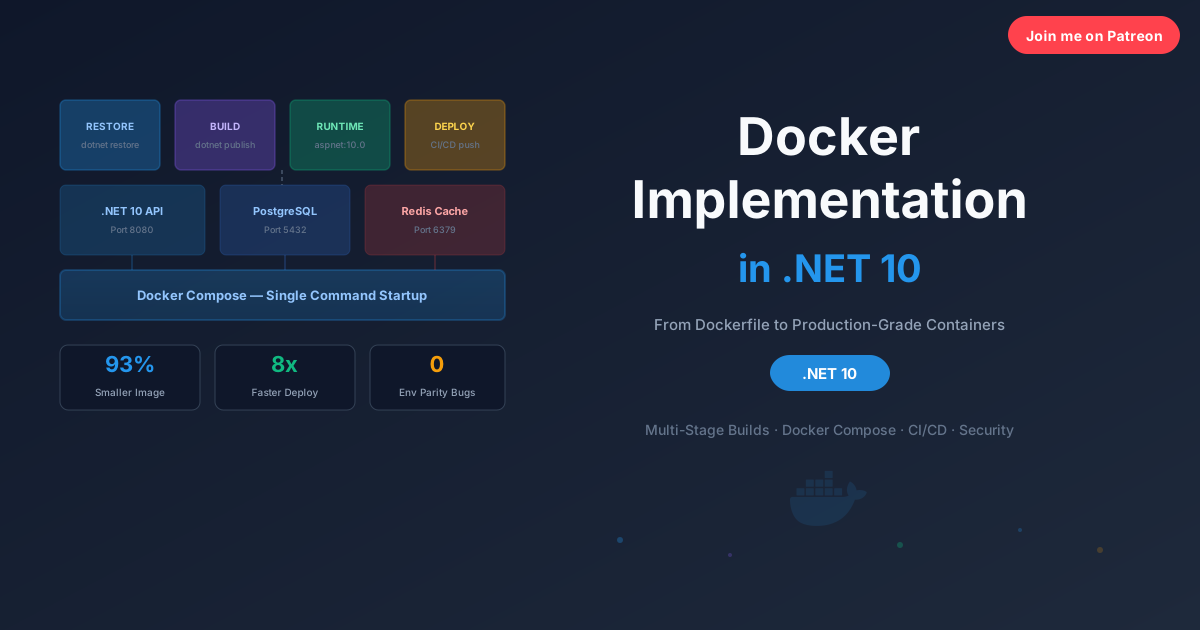
This works, but it is terrible for production. The SDK image is over 800 MB. It includes the compiler, MSBuild, NuGet CLI, and other build tools that your running application does not need. You are shipping your entire workshop when you only need the finished product.
Multi-Stage Build: The Right Way
A multi-stage build uses one image to build your application and a different, much smaller image to run it.
dockerfile
FROM mcr.microsoft.com/dotnet/sdk:10.0 AS build
WORKDIR /src
COPY ["src/MyApp.Api/MyApp.Api.csproj", "src/MyApp.Api/"]
RUN dotnet restore "src/MyApp.Api/MyApp.Api.csproj"
COPY . .
WORKDIR "/src/src/MyApp.Api"
RUN dotnet publish "MyApp.Api.csproj" -c Release -o /app/publish \
--no-restore \
/p:UseAppHost=false
FROM mcr.microsoft.com/dotnet/aspnet:10.0 AS final
WORKDIR /app
RUN adduser --disabled-password --gecos "" appuser
USER appuser
COPY --from=build /app/publish .
EXPOSE 8080
ENTRYPOINT ["dotnet", "MyApp.Api.dll"]
Let us break down what each section does and why it matters.
Stage 1 (build) uses the full SDK image because it needs the compiler. The key optimization is copying the .csproj file separately and running dotnet restore before copying the rest of the source code. This means that as long as your project file (and therefore your NuGet dependencies) has not changed, Docker reuses the cached restore layer. Your builds only need to recompile the code that changed.
Stage 2 (final) uses the ASP.NET runtime image, which is dramatically smaller because it only contains the runtime, no compiler, no build tools. The COPY --from=build instruction copies just the published output from the build stage into the runtime image. Everything else from the build stage is discarded.
The size difference is dramatic:
| Image |
Size |
mcr.microsoft.com/dotnet/sdk:10.0 |
~850 MB |
mcr.microsoft.com/dotnet/aspnet:10.0 |
~220 MB |
mcr.microsoft.com/dotnet/runtime-deps:10.0 |
~85 MB |
If you compile as a self-contained application with trimming enabled, you can use runtime-deps (which only contains the OS dependencies, not the .NET runtime itself) and get your image under 100 MB.
The .dockerignore File
Just like .gitignore prevents files from being tracked by Git, .dockerignore prevents files from being sent to the Docker daemon during builds. Without it, Docker copies everything in your project directory, including bin/, obj/, node_modules/, .git/, local secrets, and IDE configuration into the build context.
Create a .dockerignore file in your project root:
**/.dockerignore
**/.env
**/.git
**/.gitignore
**/.vs
**/.vscode
**/bin
**/obj
**/node_modules
**/docker-compose*.yml
**/Dockerfile*
**/*.md
**/*.user
**/*.suo
**/charts
**/secrets.dev.yaml
This reduces your build context from potentially gigabytes to just your source code. I have seen teams where adding a proper .dockerignore cut their build time from 8 minutes to under a minute because Docker was no longer uploading 2 GB of unnecessary files to the daemon.
Docker Compose for Local Development
Running a single container is straightforward, but real applications usually depend on a database, a cache, a message queue, and a logging stack. Docker Compose lets you define and run all of these services together.
The docker-compose.yml File
yaml
services:
api:
build:
context: .
dockerfile: src/MyApp.Api/Dockerfile
ports:
- "5000:8080"
environment:
- ASPNETCORE_ENVIRONMENT=Development
- ConnectionStrings__DefaultConnection=Host=postgres;Database=myapp;Username=postgres;Password=postgres
- ConnectionStrings__Redis=redis:6379,abortConnect=false
depends_on:
postgres:
condition: service_healthy
redis:
condition: service_healthy
networks:
- app-network
postgres:
image: postgres:16
environment:
- POSTGRES_DB=myapp
- POSTGRES_USER=postgres
- POSTGRES_PASSWORD=postgres
ports:
- "5432:5432"
volumes:
- postgres-data:/var/lib/postgresql/data
healthcheck:
test: ["CMD-SHELL", "pg_isready -U postgres"]
interval: 10s
timeout: 5s
retries: 5
networks:
- app-network
redis:
image: redis:7-alpine
ports:
- "6379:6379"
volumes:
- redis-data:/data
healthcheck:
test: ["CMD", "redis-cli", "ping"]
interval: 10s
timeout: 5s
retries: 5
networks:
- app-network
seq:
image: datalust/seq:latest
environment:
- ACCEPT_EULA=Y
ports:
- "5341:5341"
- "8081:80"
volumes:
- seq-data:/data
networks:
- app-network
volumes:
postgres-data:
redis-data:
seq-data:
networks:
app-network:
driver: bridge
What This Stack Gives You
With a single docker compose up, you get:
- ASP.NET Core API built from your Dockerfile, running on port 5000
- PostgreSQL 16 with persistent storage and a health check
- Redis 7 for caching with persistent storage and a health check
- Seq for structured logging with a web UI on port 8081
The depends_on with condition: service_healthy ensures your API does not start until the database and cache are actually ready to accept connections. Without this, your API might start before PostgreSQL finishes initializing and throw connection errors on the first few requests.
Running the Stack
bash
docker compose up -d
docker compose logs -f
docker compose logs -f api
docker compose down
docker compose down --volumes
Environment Configuration with Docker
.NET's configuration system works naturally with Docker environment variables. The double underscore __ syntax maps to the colon : separator in your configuration hierarchy.
For example, this environment variable:
ConnectionStrings__DefaultConnection=Host=postgres
Maps to this in appsettings.json:
json
{
"ConnectionStrings": {
"DefaultConnection": "Host=postgres;Database=myapp"
}
}
Using the Options Pattern
For structured settings, use the Options pattern with environment variables:
csharp
public class DockerSettings
{
public string DatabaseHost { get; set; } = "localhost";
public int DatabasePort { get; set; } = 5432;
public string RedisConnection { get; set; } = "localhost:6379";
}
csharp
builder.Services.Configure<DockerSettings>(
builder.Configuration.GetSection("Docker"));
Then set the variables in your Docker Compose file:
yaml
environment:
- Docker__DatabaseHost=postgres
- Docker__DatabasePort=5432
- Docker__RedisConnection=redis:6379
This approach keeps your code clean and testable while letting Docker control the configuration at runtime.
Health Checks Inside Containers
Health checks tell Docker (and any orchestrator running your containers) whether your application is actually healthy and ready to serve traffic. Without health checks, Docker only knows if your process is running, not whether it can actually handle requests.
ASP.NET Core Health Check Endpoint
First, add the health checks NuGet package and configure them in your application:
csharp
var builder = WebApplication.CreateBuilder(args);
builder.Services.AddHealthChecks()
.AddNpgSql(
builder.Configuration.GetConnectionString("DefaultConnection")!,
name: "postgresql",
tags: new[] { "db", "ready" })
.AddRedis(
builder.Configuration.GetConnectionString("Redis")!,
name: "redis",
tags: new[] { "cache", "ready" });
var app = builder.Build();
app.MapHealthChecks("/health/live", new HealthCheckOptions
{
Predicate = _ => false
});
app.MapHealthChecks("/health/ready", new HealthCheckOptions
{
Predicate = check => check.Tags.Contains("ready")
});
The /health/live endpoint confirms the application process is running (liveness). The /health/ready endpoint confirms that the application can connect to its dependencies (readiness).
Docker HEALTHCHECK Instruction
Wire the health endpoint into your Dockerfile:
dockerfile
FROM mcr.microsoft.com/dotnet/aspnet:10.0 AS final
WORKDIR /app
COPY --from=build /app/publish .
EXPOSE 8080
HEALTHCHECK --interval=30s --timeout=10s --start-period=15s --retries=3 \
CMD curl -f http://localhost:8080/health/live || exit 1
ENTRYPOINT ["dotnet", "MyApp.Api.dll"]
Docker will call the health check every 30 seconds. If it fails 3 times in a row, the container is marked as unhealthy. Any orchestrator (Docker Compose, Kubernetes, etc.) can use this information to restart or replace the container.
Layer Caching: Making Builds Fast
Docker layer caching is the single biggest build performance optimization, and it depends entirely on the order of instructions in your Dockerfile.
The rule is simple: Docker caches each layer and reuses it as long as that layer and all previous layers have not changed. The moment Docker detects a change, it invalidates that layer and all subsequent layers.